Hello Youtubers and blogger, the videos on our channel are about step by step drawing anime, news, sketches, autocad 2D, google sketchup 3D and photoshop thank you and good luck always to us all.

Showing posts with label Graphic design. Show all posts

62 Photoshop shortcuts to speed up your workflow - (Part 8) Text in Photoshop

Text in Photoshop

The best Photoshop shortcuts that include layering, text, viewing and handling images.

Text options are hard to find in Photoshop, because everyone uses them

58. Increase / decrease the size of the selected text by 2 points

MAC: Cmd + Shift +> / <

WINDOWS: Ctrl + Shift +> / <

Experiment with text in Photoshop by using this command to change its size by 2pts.

59. Increase / decrease the size of the selected text by 10 points

MAC: Cmd + Options + Shift -> / <

WINDOWS: Ctrl + Alt + Shift +> / <

This Photoshop shortcut works the same as above, but this time is 10pts.

60. Increase / decrease kerning or tracking

MAC: Select + right / left arrow

WINDOWS: Alt + right / left arrow

Adjust the space between your text in Photoshop with these practical keyboard commands.

61. Align the text left / center / right

MAC: Cmd + Shift + L / C / R

WINDOWS: Ctrl + Shift + L / C / R

A great way to experiment with aligning your text, this Photoshop shortcut will allow you to do it quickly.

62. Show / Hide options for the selected type

MAC: Cmd + H

WINDOWS: Ctrl + H

Speed ​​up the process of selecting elements by type with these easy-to-remember shortcuts.


Share:

62 Photoshop shortcuts to speed up your workflow - (Part 7) Viewing

Viewing

The best Photoshop shortcuts that include layering, text, viewing and handling images.

How sharp is the knight's photo? Only one way to say: CMD + OPT + 0

54. See actual pixels

MAC: Cmd + Select + 0

WINDOWS: Ctrl + Alt + 0

Viewing images in Photoshop in actual pixels gives you the opportunity to see each pixel individually - making sure your work is perfect.

55. Fit on the screen

MAC: Cmd + 0

WINDOWS: Ctrl + 0

This Photoshop shortcut is the best way to see your work with all its glory on screen.

56. Zoom in

MAC: Cmd ++

WINDOWS: Ctrl ++

If you want to see the ins and outs of an image, zoom in with this Photoshop shortcut command.

57. Zoom out

MAC: Cmd + -

WINDOWS: Ctrl + -

Get insight into how your work will look remotely with this zoom out command.

Next page: Text in Photoshop

Sumber : https://www.creativebloq.com/photoshop/photoshop-shortcuts-1012966/7
Share:

62 Photoshop shortcuts to speed up your workflow - (Part 6) 3D work

3D work

The best Photoshop shortcuts that include layering, text, viewing and handling images.

Speed up your 3D work with these Photoshop shortcuts

52. Show / Hide polygons

Under Selection

MAC: Select + Cmd + X

WINDOWS: Alt + Ctrl + X

Reveal All

MAC: Select + Shift + Cmd + X

WINDOWS: Opt + Shift + Ctrl + X

If you work with 3D assets, use this option to see the polygons that make up your 3D model.

53. Give

MAC: Select + Shift + Cmd + R

WINDOWS: Alt + Shift + Ctrl + R

Once you are satisfied with your 3D model, use these Photoshop shortcuts to make the final rendering and create the highest quality version for output to the web, print, or animation.

Next page: Viewing

Sumber : https://www.creativebloq.com/photoshop/photoshop-shortcuts-1012966/6

Share:

62 Photoshop shortcuts to speed up your workflow - (Part 5) Working with your images

Working with your images

The best Photoshop shortcuts that include layering, text, viewing and handling images.

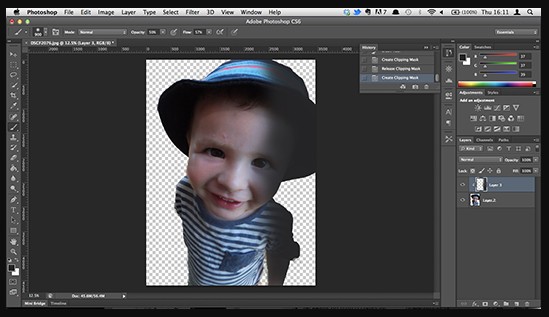
We love Clipping Masks. Does that make us weird? IS THAT?! Well. Fair enough

36. Level

MAC: Cmd + L

WINDOWS: Ctrl + L

When editing your image, you will use the Levels box regularly. Save time with this Photoshop shortcut.

37. Transform Free

MAC: Cmd + T

WINDOWS: Ctrl + T

This command opens Photoshop's Free Transform tool to resize, rotate, and tilt the image using lines that can be dragged.

38. Curves

MAC: Cmd + M

WINDOWS: Ctrl + M

This Photoshop shortcut allows you to quickly edit a curve in an image.

39. Color Balance

MAC: Cmd + B

WINDOWS: Ctrl + B

This is the perfect Photoshop shortcut for editing your image's Color Balance.

40. Hue / Saturation

MAC: Cmd + U

WINDOWS: Ctrl + U

These two powerful Photoshop tools will help you to battle color balance, and reduce the number of crossovers.

41. Desaturate

MAC: Cmd + Shift + U

WINDOWS: Ctrl + Shift + U

Convert your color image to a gray scale value, leaving the image in the same color mode.

42. Quick image fixes

Automatic Tone

MAC: Shift + Cmd + L

WINDOWS: Shift + Ctrl + L

Automatic Contrast

MAC: Select + Shift + Cmd + L

WINDOWS: Alt + Shift + Ctrl + L

Automatic Color

MAC: Shift + Cmd + B

WINDOWS: Shift + Ctrl + B

After a quick fix for a photo? Although it is not completely curable, this tool is usually suitable to be used to repair your images automatically.

43. Lens correction

MAC: Shift + Cmd + R

WINDOWS: Shift + Ctrl + R

The camera is always located, especially where lens distortion is involved. Use a lens correction filter to reduce the effects of barrel distortion, bearing distortion and vignetting.

44. Adaptive Wide Angle

MAC: Select + Shift + Cmd + A

WINDOWS: Opt + Shift + Ctrl + A

Wide-angle lenses can bring their own special distortion, and Photoshop has a filter for this. The Wide Angle Adaptive Filter can quickly straighten lines that appear curved in panoramas, or photos taken with a fish-eye and wide-angle lens.

45. Camera Raw Filters

MAC: Shift + Cmd + A

WINDOWS: Shift + Ctrl + A

With old versions of Photoshop, you have to run Adobe Camera Raw as a separate program. But in Photoshop CC, it is available as a filter, allowing you to non-destructively apply sophisticated adjustments to all types of images.

46. ​​Content-aware scale

MAC: Cmd + Shift + Opt + C

WINDOWS: Ctrl + Shift + Alt + C

Scale your image to the state of your choice with this super-fast Photoshop shortcut.

47. Moving Aware Content

MAC AND WINDOWS: Shift + J

The latest content aware tool in Photoshop CC allows you to move objects in a photo, and it will intelligently fill in the gaps where they used to be.

48. Create mask clippings

MAC: Cmd + Opt + G

WINDOWS: Ctrl + Alt + G

A great way to keep shadows and shadows where they are, the clipping mask tool is basic but useful.

49. Mixing mode

MAC: Shift ++ or -

WINDOWS: Shift ++ or -

Photoshop has a variety of blend modes to create cool effects. Use this command to trace each one.

50. Black and white dialog box

MAC: Shift + Cmd + Opt + B

WINDOWS: Shift + Ctrl + Alt + B

Speed ​​up the process of converting color photos to black and white with this Photoshop shortcut, which opens the black and white adjustment dialog box.

51. Change the image size

MAC: Cmd + Opt + i

WINDOWS: Ctrl + Alt + i

Prepare the size of your image easily with this quick and simple shortcut.


Share:

62 Photoshop shortcuts to speed up your workflow - (Part 4) Saving and closing

Saving and closing

The best Photoshop shortcuts that include layering, text, viewing and handling images.

You will save a lot of things. So this Photoshop shortcut will be useful.


34. Save for web & devices

MAC: Cmd + Shift + Opt + S

WINDOWS: Ctrl + Shift + Alt + S

It's quite clear, but if you choose not to drag the mouse over a number of options, use this Photoshop shortcut on your keyboard.

35. Cover and go to the Bridge

MAC: Cmd + Shift + W

WINDOWS: Ctrl + Shift + W

As the name implies, this will close your document and then open Adobe Bridge, where you can choose the next file you want to work on.

Next page: Working with your images
Share:

62 Photoshop shortcuts to speed up your workflow - (Part 3) Brushes and Filling

Brushes and Filling

The best Photoshop shortcuts that include layering, text, viewing and handling images.

Play with brush sizes and more with this great Photoshop shortcut

28. Increase / decrease brush size

MAC:] / [

WINDOWS:] / [

Getting your brush size right is one of the most important aspects of Photoshop. Do it with this command.

29. Contents

MAC: Shift + F5

WINDOWS: Shift + F5

Do you want to fill the selection with the foreground color or with the selected pattern, use this Photoshop shortcut to get the job done quickly.

30. Increase / decrease brush hardness

MAC:} / {

WINDOWS:} / {

Brush hardness is just as important, so do it right with this shortcut.

31. Previous / next brush

MAC:, /.

WINDOWS :, /.

Save time and hassle by using this simple command to quickly move through the various brushes offered.

32. The first / last brush

MAC: </>

WINDOWS: </>

If you don't want to browse the entire array of Brushes that are offered, press this command to return to the beginning or end.

33. Switch airbrush options

MAC: Shift + Opt + P

WINDOWS: Shift + Alt + P

Simulate spray painting with the Photoshop Airbrush tool using this useful shortcut.

Next page: Saving and closing

Sumber : https://www.creativebloq.com/photoshop/photoshop-shortcuts-1012966/4

Share:

62 Photoshop shortcuts to speed up your workflow - (Part 2) SELECTIONS

SELECTIONS

Add, subtract, reverse. Getting the right choice has never been easier

16. Reselect

MAC: Cmd + Shift + D

WINDOWS: Ctrl + Shift + D

This is a good command for when you accidentally click on a part. Pressing this button will make the part reelected in a short time.

17. Reverse the selection

MAC: Cmd + Shift + I

WINDOWS: Ctrl + Shift + I

Select the object around the previously selected image. In this way, you can overcome your main focus without losing it.

18. Select all layers

MAC: Cmd + Opt + A

WINDOWS: Ctrl + Alt + A

Perfect commands for times when you need to do everything in synchronization.

19. Select the bottom layer

MAC: Select +,

WINDOWS: Alt +,

This will select the bottom layer in the Layers panel.

20. Select the top layer

MAC: Select +.

WINDOWS: Alt +.

This will select the top layer in the Layers panel.

21. Remove selection from the selection area

MAC: Select + drag

WINDOWS: Alt + drag

If you need to deselect certain sharp areas, then press this button and drag your mouse.

22. Uncheck all but intersecting areas

MAC: Shift + Opt + drag

WINDOWS: Shift + Alt + drag

If you don't want to deselect an area, you can use this shortcut to make sure you click what you want.

23. Uncheck all images

MAC: Cmd + D

WINDOWS: Ctrl + D

If you need to move away from the image, use this Photoshop shortcut to deselect whatever you have clicked on.

24. Find the size handle

MAC: Cmd + T, then Cmd + 0

WINDOWS: Ctrl + T, then Ctrl + 0

When pasting a layer or selection to a Photoshop image and it's bigger than the current image, it can be difficult to find a size handle. This command selects Transform and the image size in the window so you can see the size handle.

25. Move selection

MAC: Spacebar + Marquee tool

WINDOWS: Spacebar + Marquee tool

Want to move choices easily? Simply select the Marquee tool, and press and hold the space bar. Keep doing it until the choice is in the right place.

26. Select individual channels

MAC: Cmd + 3 (red), 4 (green), 5 (blue)

WINDOWS: Ctrl + 3 (red), 4 (green), 5 (blue)

Choosing with Photoshop Channels makes removing complex objects from the background much easier than using other tools. And using these Photoshop shortcuts makes the process simpler.

27. Choose a color from the picture

MAC: Select the + Brush tool

WINDOWS: Alt + Brush tool

When working with Photoshop brushes, if you want to take color samples from an image, instead of clicking on the Eyedropper tool, just hold down the Alt or Option key to temporarily switch. Then release to return to the Brush tool.
Share:

62 Photoshop shortcuts to speed up your workflow - (Part 1) LAYERS

LAYERS

When working in Photoshop, simple tasks can be a barrier to your workflow. To help, we have a large selection of Photoshop shortcuts here, all guaranteed to speed up your workflow once you get used to it.

We also have free Photoshop actions to create stunning effects and some brilliant Photoshop tutorials to help you practice them.

Do you want to change the size of your text? No problem. Uncheck layers or merge layers? We help you. There are also some practical instructions for brushes, storage and closure, and display options. Whether you are using an old CS version or the latest Creative Cloud update, these shortcuts are guaranteed to speed up your workflow.

(Prefer quick visual guide? See our handy Photoshop shortcuts cheat sheet.)

Manipulating and arranging layers is very easy with this incredible Photoshop shortcut

01. Show and hide the layers panel

WINDOWS: F7

MAC: F7

Show and hide the Layers panel easily by pressing F7 on your keypad. It will also show and hide the Channels and Paths panels because they are grouped together.

02. Scroll in Layers

MAC: Options []

WINDOWS: Alt []

To scroll through layers quickly, hold Alt / Options and use the left and right bracket buttons [] to scroll: top right and bottom left.

03. Create a New layer

MAC: Shift + Cmd + N

WINDOWS: Shift + Ctrl + N

Start your latest project in the near future with these practical shortcuts that instantly create new layers and dialog boxes.

04. Create a new layer behind the selected layer

MAC: Ctrl + New Layer icon

WINDOWS: Cmd + New Layer Icon

Mastering new layer shortcuts is easy, so once you are ready to drop the layer behind it, be sure to use these shortcuts.

05. Fill one layer

MAC: Alt + Backspace (foreground) or Cmd + Backspace (background)

WINDOWS: Alt + Delete (foreground) or Ctrl + Delete (background)

This command will fill in the blank later with the current foreground or background color.

06. Align the layer

MAC: Cmd + Alt + Shift + E

WINDOWS: Ctrl + Alt + Shift + E

Add a new blank layer to the top of your stack, select and use the command above to align the layers in the image to sharpen the results. This adds an even version of the image to the new layer but leaves the stacked layers intact.

07. Merge the visible layers

MAC: Cmd + Shift + E

WINDOWS: Ctrl + Shift + E

This command allows you to combine all the existing layers to create a new layer. Beware! After joining, they are very difficult to separate.

08. Get rid of the selected layer

MAC: Cmd + Alt + E

WINDOWS: Ctrl + Alt + E

After you select your layer, use this command to combine it into only one layer. To see it merged as a new layer, just add the Shift modifier. This is useful if you need to make adjustments later.

09. New layer through copy

MAC: Cmd + J

WINDOWS: Ctrl + J

Use this command to create a new layer from an existing one. Sound complicated? Give it a try!

10. New layer through the cut

MAC: Cmd + Shift + J

WINDOWS: Ctrl + Shift + J

Like creating a new layer through copy, this command will create a new layer with the selected image area in it. The only difference through cut is that it will delete the selected part of the image from the original image.

11. Bring the layer to the top of the pile

MAC: Cmd + Shift +]

WINDOWS: Ctrl + Shift +]

Here, you can move the layer of your choice onto the stack of images that you are working on in Photoshop.

12. Send the layer to the bottom of the stack

MAC: Cmd + Shift + [

WINDOWS: Ctrl + Shift + [

Yep, this is quite clear. That is not exactly the same as above, but in the opposite direction.

13. Bring the layer to the front

MAC: Cmd +]

WINDOWS: Ctrl +]

This Photoshop shortcut allows you to bring the selected image forward.

14. Send the layer back

MAC: Cmd + [

WINDOWS: Ctrl + [

If you decide to change your mind, you can always choose an image and send it to the back of the stack.

15. Copy several layers

MAC: Shift + Cmd + C

WINDOWS: Shift + Ctrl + C

Make a selection, then use this command to take each layer to the clipboard, not just the current layer selection.
Share:

Kontributor

My photo
KRUENGMANE, ACEH, Indonesia
my name is mirza.h.st.ars

Labels

Postingan Populer